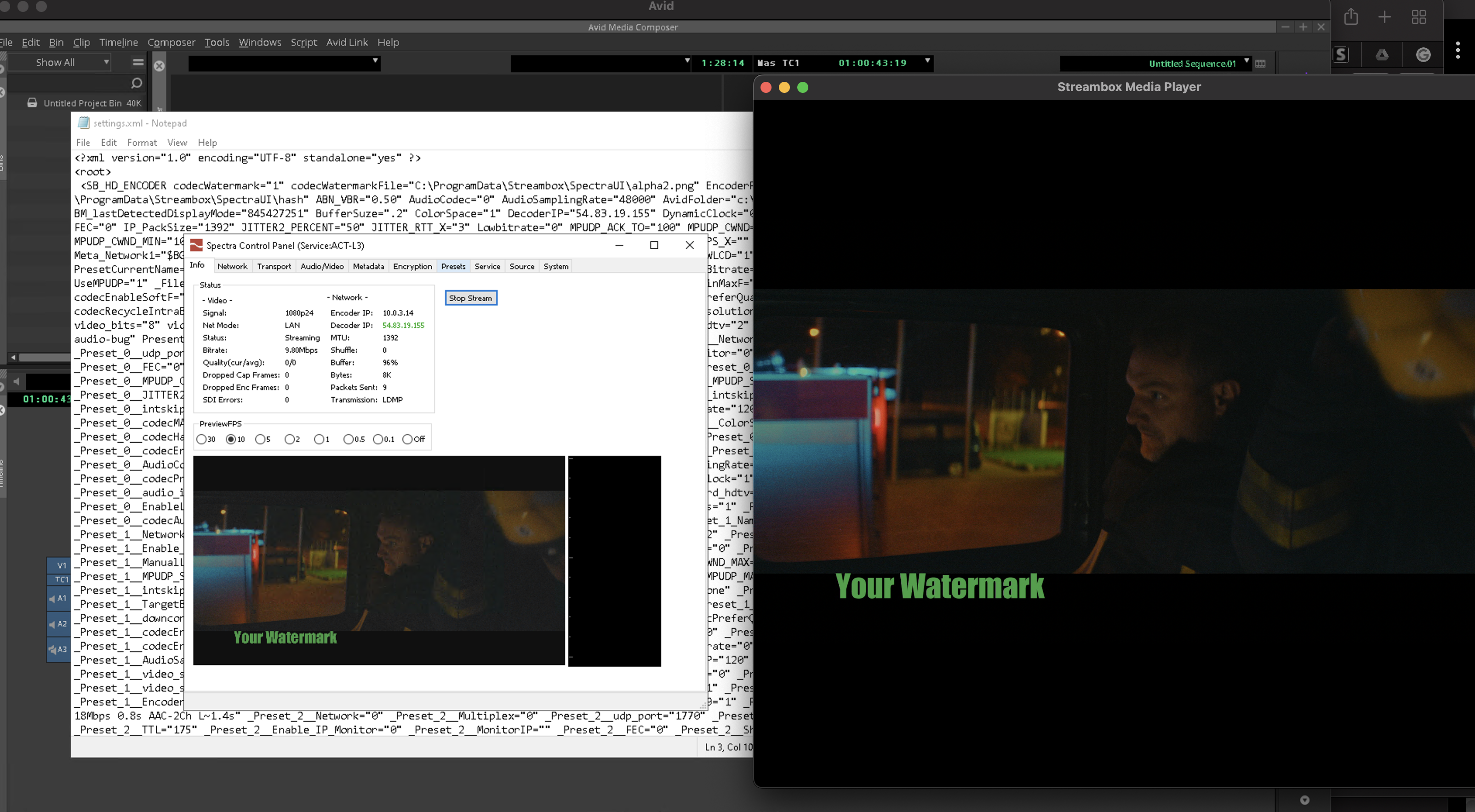
Add Watermark image to Spectra
Follow the below procedure to manually add watermark to Spectra. The procedure varies with each platform, but the watermark file should be a PNG file with transparency and a resolution of 1920x1080. The entire image will be overlaid upon the streamed image, so your watermark text/graphic should be as transparent or opaque as you prefer, and should cover as much of the image as you desire.
All of the below examples use an example filename alpha2.png, but the filename and location can be changed as described below.
Windows Spectra:
If Spectra is running, stop Spectra either by closing the Spectra Control Panel or accessing the Service tab and clicking Stop next to the service which is running.
Open Notepad as an administrator. (If you're not sure how, follow this guide found at a third-party website: https://helpdeskgeek.com/how-to/run-notepad-as-administrator-to-avoid-access-is-denied )
Open the following file:
C:\ProgramData\Streambox\SpectraUI\settings.xml
In the main body of the settings file, variables and their settings are found after this text, separated by a single space.
<SB_HD_ENCODER
Following the same format as the other variables, add the following 3 variables. Note that the below settings use an example filename "alpha2.png" as the watermark image, a PNG file with transparency, 1920x1080 pixels in size.
codecWatermark="1"
codecWatermarkFile="C:\ProgramData\Streambox\SpectraUI\alpha2.png"
EncoderPreviewOverlay="1"
You can customize the codecWatermarkFile path and filename to the location of your png file, or you can move your watermark file to the path shown above.
Examples
The below images include a sample watermark file, and an example image showing the Spectra Control Panel with the watermark visible in the Preview window, the settings.xml file contents, and a Media Player which shows the watermark applied to the stream being received from Spectra.