
Spectra VM with AWS CDI for Rocky Linux with DaVinci Resolve
Streambox Spectra VM now supports Rocky Linux on Amazon Web Services (AWS), with support for DaVinci Resolve as the input source.
Below are instructions for installing and updating Spectra VM via command line access to the server; Root access is required.
Requirements:
An AWS instance that’s enabled with GPU (NVIDIA) graphics support and is EFA-enabled. EFA must be enabled at the time the instance is created; it cannot be switched on later and is required for CDI.
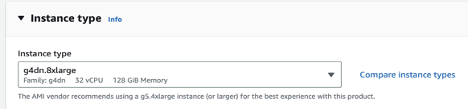
Select Instance type that supports EFA (you can modify later)
E.g., G4dn.8xlarge (available in most zones, convertible to G5 later)
You will need to enable the Elastic Fiber Adapter.
Note: If it appears disabled, instance type selected does not support EFA/CDI
Installing:
At the command-line prompt, run the following commands in order. You may be prompted to enter the root password, depending on your current user privileges.
cd /tmp/wget https://www.dropbox.com/s/m04n8b1tafe2eac/InstallSbxCDI.RL87.05.tgz
tar xvf InstallSbxCDI.RL87.05.tgz
cd InstallSbxCDI
sudo ./installefa
sudo ./installsbx
Next, update Spectra:
cd /tmp
sudo rpm -Uvh streambox_app_pack-52.CO1.CDI.MON-1.x86_64.rpm
Running the software:
- After install, Start Spectra Control Panel via Gnome Search.
- Activate the encoder and 4:4:4 12-bit
- Select Spectra as the Capture Device source in Source tab
- Restart Spectra once before using Resolve, since Resolve will request maximum supported bits from the Spectra. Use the Monitoring tab for CDI output configuration. Check the number of bits AWS CDI is displaying in Monitoring tab. Should be 10, or 12 if the optional 4:4:4 12-bit license is activated.
Notes:
- The preferred codec selection is ACT-L5. Change this if necessary in the System tab.
- This workflow was tested with Nice DCV; Teradici PCoIP should not be used
- Broker/P2P (beta) function is not confirmed
Uninstall:
To uninstall, run the following command in the system:
sudo /tmp/InstallSbxCDI/unistallsbx